Amazon OSS VAT calculations.
Automated for Cyprus.
Upload your Amazon VAT reports. OSS Cyprus calculates your OSS figures by country and VAT rate, accounts for refunds and prepares your quarterly return for Cyprus. Transfer the results into a government portal draft and review the figures before submitting.
For Amazon sellers already registered for OSS in Cyprus.
Create an account, upload your report and check the totals for free. No credit card, no subscription.
Every position entered.
Countries · Tax rates · Sales · VAT amounts
Your Amazon OSS calculation service in Cyprus
For Amazon sellers already registered for Union OSS in Cyprus: OSS Cyprus calculates and prepares your Amazon data for quarterly reporting. Our software service is operated by DW 6 9 LTD in Monagroulli, near Limassol, and is available in English, Greek and German.
What do we calculate from your Amazon reports?
The software analyses your Amazon VAT Transactions Reports in CSV or TXT format. You receive OSS-relevant net sales and VAT amounts by dispatch country, destination country and VAT rate. Amounts in other currencies are converted to euros for your OSS report using the applicable ECB reference rates.
How are refunds and corrections handled?
Refunds are matched to the original sale. Refunds for current-quarter sales are included in that quarter's figures. Refunds relating to earlier sales appear separately as prior-quarter corrections. Shipping-only refunds are also accounted for using the tax information in the report.
What do you receive for your Cyprus OSS return?
Check your totals for free after uploading. The quarterly package adds the full country and VAT breakdown, exports and automatic transfer into a draft in the Cyprus Tax-OSS portal. You or your accountant review the draft and submit the return there. A detailed review of multiple historical quarters is agreed separately.
From Amazon report to completed OSS return. In a few clicks.
Four steps. Automatically calculated and entered in the government portal.
Download your report from Amazon
In Seller Central, open Menu → Supply Chain → Supply Chain Reports → Tax → Amazon VAT Transactions Report. Select a month or exact date range and download the report as CSV or TXT.
Open the step-by-step guideUsing the tax figures already provided by Amazon.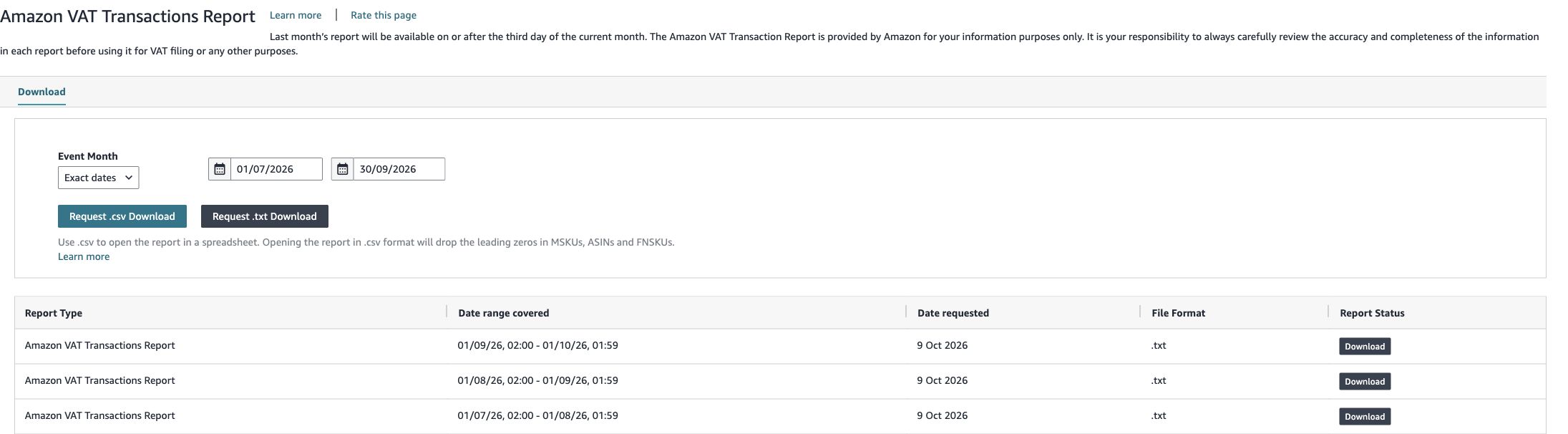 Enlarge
Amazon Seller Central · ReportsCompany details anonymised Upload it to OSS Cyprus
Open your quarter and upload the report. The free pre-check shows reliably calculated OSS totals and detects missing months, duplicate records and anything that needs clarification.
Monthly and quarterly reports are supported. Enlarge
OSS Cyprus · Upload reportCompany details anonymised Review the calculated overview
First, check the totals for free. Purchase the quarter package for the full country breakdown, exports and transfer. Access is unlocked once we have checked actual receipt of your bank transfer. Then review the details and resolve any outstanding questions.
Confirm previous-return information once when needed. Enlarge
OSS Cyprus · Countries and VAT amountsQ3 example with added corrections · Company details anonymised Open your completed return
After your confirmation, we automatically enter every country and tax position in the Cyprus OSS portal and verify the saved figures. Review the completed return and submit it in the OSS portal.
No manual entry of each individual position. Enlarge
Cyprus OSS portal · Completed returnCompany details anonymised Earlier quarters have their place, too.
Corrections appear in their own return section, with the relevant original quarter.
 Enlarge
Example corrections for earlier quartersCompany details anonymised
No manual transfer: every country and tax position is entered in the OSS portal. Review the completed return and submit it there.
The refund comes later.
The period stays clear.
When a return or later credit note reduces a sale already reported through OSS, the adjustment relates to the original reporting period. OSS Cyprus matches refunds where the records support it and prepares corrections separately from current-quarter sales.
More about corrections- Q2Sale in June
The sale was reported in Q2.
- Q3Refund in September
The refund is matched to the original sale.
The Q3 return includes a separate correction for Q2.
Matched refunds handled automatically
If the reporting history is unclear, we ask once about the previous return. No confirmation for each individual refund.
Resolve only real questions
Clarify unknown matches and amounts already partially accounted for where needed.
Every version stays traceable
Current sales, earlier periods and documented confirmations remain separately visible.
One quarter.
Automatically completed.
See your OSS totals in the free pre-check. The quarter package adds the full breakdown, exports and transfer. Recalculations and updates for the same quarter are included.
No subscription, no automatic renewal
Per company and reporting quarter
Current payment method in your account
Your account shows the current price and available payment details before purchase.
Current price in your account
Applicable VAT added at checkout.
Full country and VAT breakdown with export
Every position automatically entered in the OSS portal
Recalculations included
10-year downloadable archive
Pay by bank transfer. We unlock the quarter once we have checked actual receipt of payment. Sending the transfer alone does not unlock access.
Any questions?
From your free pre-check to your completed return: the key answers.
All questions & answersWhat can I see in the free pre-check?
You can see the available totals: net OSS sales, current-quarter VAT, included prior-quarter corrections and estimated VAT payable. Country and return-position counts and a refund overview are also included. Any country credit is shown separately. Missing months and open questions remain visible. Values may be provisional while confirmations are pending; unreliable or outdated totals are not displayed. The quarter package adds the full country and VAT breakdown, correction details, exports and transfer to the OSS portal.
Why do the totals differ from Excel or Power BI?
Compare the same scope: our current sales totals include refunds for sales in this quarter. Refunds relating to earlier sales appear separately as corrections. Your own analysis may already deduct these from its total. Exchange rates, rounding or filters can also cause differences. Open “Compare with the OSS government portal” to compare submitted returns. A difference alone does not establish a calculation error.
What happens to corrections for earlier quarters?
Required adjustments to submitted Union OSS returns are included in a later return, identifying the original quarter, the Member State of consumption and the VAT adjustment. OSS Cyprus prepares them separately from current sales. The OSS window is three years from the original filing deadline. Whether later corrections are still accepted depends on national rules; contact the relevant Member State directly.
EU law: Article 369g(4)Does OSS Cyprus submit my final return?
OSS Cyprus calculates the figures and enters them in the Cyprus OSS portal after your confirmation, including the prior-quarter corrections included in your result. The completed return is saved as a draft. Review the figures, click Submit in the government portal and pay the OSS tax to the authority. A saved draft is not yet a filed return.