AMAZON REPORT · STEP BY STEP
How to download your Amazon report.
OSS Cyprus needs the Amazon VAT Transactions Report in CSV or TXT format. This guide takes you from finding the correct report to uploading your complete quarter.
Open report in Seller CentralOpens Amazon in a new tab. Sign in there with your seller account.Open the correct report
Open the direct link above. If Amazon takes you to its home page first, look for this report name in Seller Central:
Amazon VAT Transactions Report
Amazon-Umsatzsteuer-Transaktionsbericht
In Seller Central: Menu → Supply Chain → Supply Chain Reports → Tax → Amazon VAT Transactions Report. Menu names may differ by country, language and account. Use the report title to identify it.
Select the complete quarter
Choose Exact dates and enter the first and last day of your quarter. Alternatively, use Event Month to download each of the three complete months and upload them together later.
Example year 2026 · Date format DD.MM.YYYY Quarter / months From Through Q1
January, February, March01.01.2026 31.03.2026 Q2
April, May, June01.04.2026 30.06.2026 Q3
July, August, September01.07.2026 30.09.2026 Q4
October, November, December01.10.2026 31.12.2026 Check the year carefully. Q3, for example, includes July, August and September, not just the final month. Follow the date format shown in your Amazon account.
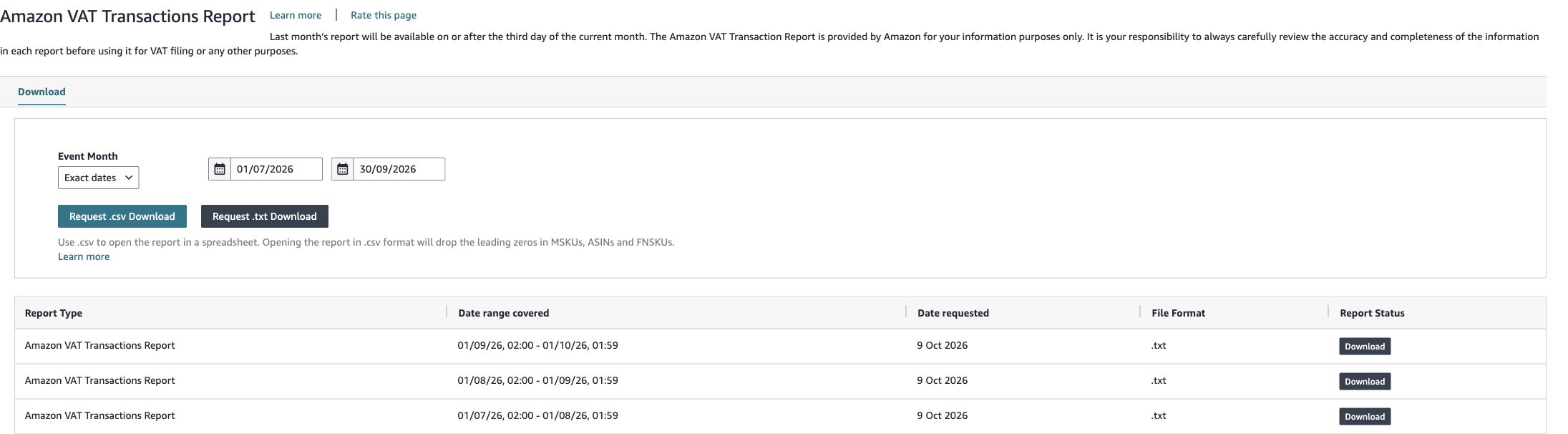
Enlarge image to read the fields
Original screenshot in English. Q3 2026 is selected at the top; July, August and September 2026 are available as separate monthly downloads below. Download all three monthly files or one complete quarterly report. Request CSV or TXT
Click Request .csv Download or Request .txt Download. Both original formats are supported. Amazon now prepares the report; requesting it does not download the file yet.
CSVTXTFor monthly reports, repeat this for each of the three months. Use one complete quarterly file or three complete monthly files for the selected period.
Wait and download the matching file
Wait for Amazon to prepare the report. If the download is not available yet, refresh the page after a while or return to the report area later.
In the list below, find the row with your exact date range and chosen file format. Click Download in that row and save the file somewhere easy to find, such as your Downloads folder.
Detail from the original screenshot · Click to enlarge. SELECTED IN THE EXAMPLEQ3 2026
01.07.2026 – 30.09.2026
AVAILABLE MONTHLY DOWNLOADSJuly + August + September 2026
All three files together cover Q3.
Upload the original files to OSS Cyprus
Sign in to OSS Cyprus, open or create the matching quarter under Quarters, and select your downloaded files in the upload area. You can select several files at once for the three monthly reports.
Your files are ready when …
- they cover all three months of the correct quarter and year;
- they are the unchanged CSV or TXT files from Amazon;
- you select no more than 12 files at once, with a maximum of 250 MiB and 500,000 data rows per file.
Upload the original file without editing or resaving it in Excel first. Then wait for the pre-check and review any messages about missing months, overlaps or questions that need your attention.
If you get stuck
I cannot find the report.
Use the direct link and check the selected seller account. If the report is unavailable, contact your account administrator or Amazon Seller Support. Menus can differ between accounts.
The file is too large or the quarter is incomplete.
Request smaller consecutive periods from Amazon, such as the three individual months, and upload those files together. Check the start and end dates and the available download rows.
OSS Cyprus does not recognise the file.
Check the report title and download the unchanged CSV or TXT file from Amazon again. XLSX, PDF and renamed files from other reports are not substitutes. Our frequently asked questions offer further help.